
8. Across machines#
In this chapter you run the session host on another machine, for example a build server, a workstation at home, or a cloud VM, and work in its shells from your laptop, tablet, or phone. The machine can sit behind a router; you open no ports.
The pairing steps below were checked on a fresh Ubuntu 24.04 server, with a Linux desktop as the client.
How it works#
The session host (mpmux-sessiond) runs on the server and keeps the shells.
Your devices connect to it with Iroh:
- The host and every device have their own key pair. Connections are end-to-end encrypted between those keys (QUIC with TLS 1.3).
- If two machines cannot reach each other directly, the traffic goes through
a relay. The relay forwards encrypted packets; it cannot read your
terminal. mpmux uses
relay.mightypainting.devunless you run your own (relay server). - Only paired devices get in. Pairing is a one-time step per device; see How pairing works below.
1. Set up the server#
Install mpmux on the server (installation; on Ubuntu or
Debian from the apt repository). The server needs no display; you only use
mpmux-sessiond and mpmux-cli there. A Mac works the same way; see
On a Mac below.
Install the session host as a user service, with authentication and Iroh switched on:
mpmux-cli service install --remote
sudo loginctl enable-linger "$USER"   # Linux: keep it running when you log out
Without --remote, the host runs without device auth, so it cannot pair:
mpmux-cli pair fails with "auth-unavailable: sessiond was started without
--auth-store". That is the case after a plain mpmux-cli service install and
for the service the Linux packages ship (systemctl --user enable --now
mpmux-sessiond.service). Switch a running host over with
mpmux-cli service install --remote --restart; the restart ends its shells.
service install --remote creates the admin token
(~/.config/mpmux/sessiond-admin-token; it lets the server's owner create
invites and manage devices and never leaves the server), writes the user
service, and starts it. The host creates its Iroh key and the auth store in
~/.config/mpmux on the first start. Check that it is up:
mpmux-cli service status
journalctl --user -u mpmux-sessiond -n 5
# mpmux-sessiond: auth store loaded from …/auth-store.json
# mpmux-sessiond: Iroh listener online as e2894f…7d25fc via https://relay.mightypainting.dev/
# mpmux-sessiond: listening on /run/user/1000/mpmux-sessiond.sock
By default devices on the same network connect directly instead of through
the relay; --relay-only turns that off. --relay-url names your own relay
(relay server).
Do not start a second mpmux-sessiond by hand on the same socket: the
service then fails with "refusing to replace live Unix socket" and devices
cannot connect. mpmux-cli service install refuses to start while another
session host holds the socket.
On a Mac#
macOS has no systemd. The same command installs a launchd LaunchAgent
(~/Library/LaunchAgents/dev.mightypainting.mpmux-sessiond.plist) that starts
the host when you log in and keeps it running when the mpmux window closes:
mpmux-cli service install --remote
In a shell inside mpmux, mpmux-cli is on the PATH; in Terminal.app, use
/Applications/mpmux.app/Contents/MacOS/mpmux-cli
(or link it).
It runs the mpmux-sessiond inside the app and passes your shell's SHELL,
PATH, and LANG to the sessions. The log is in
~/Library/Logs/mpmux-sessiond.log. Keep the Mac awake while devices use it
(System Settings → Energy, or sudo pmset -a sleep 0).
Change or remove the service#
mpmux-cli service install --dry-run prints the service file and the
commands without changing anything. Running install again with other
options applies them; while the service runs, that needs --restart,
because a restart ends the host's shells. mpmux-cli service uninstall
stops the host and removes the service; the pairings, the Iroh key, and the
admin token stay in ~/.config/mpmux, so a later install --remote keeps
the paired devices.
A service file you wrote yourself is left alone: install refuses to
replace it and uninstall refuses to remove it. Only one session host can
use the socket, so move your own service aside before installing this one;
devices paired with it pair again, because its auth store lives elsewhere.
2. Pair your desktop#
On the server, create a one-time invite:
mpmux-cli pair url --device-label "laptop"
It prints an mpmux://sessiond-pair?… link and copies it to the clipboard
when the server has one. Over SSH, copy the printed link yourself. The invite
works once and expires after ten minutes.
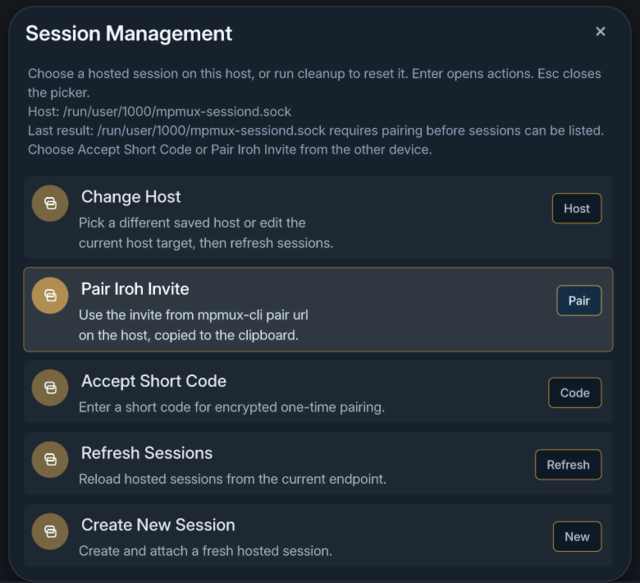
On the desktop, with the link in the clipboard, open the command palette (Ctrl+Shift+P), choose Session Management, then Pair Iroh Invite:
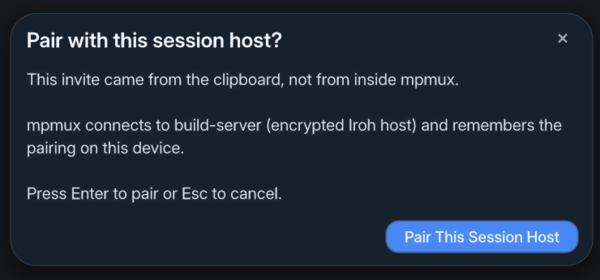
mpmux shows which host the invite names. Press Enter to pair:
mpmux pairs, connects, and shows the host's sessions. On a new host there are none yet; choose New:
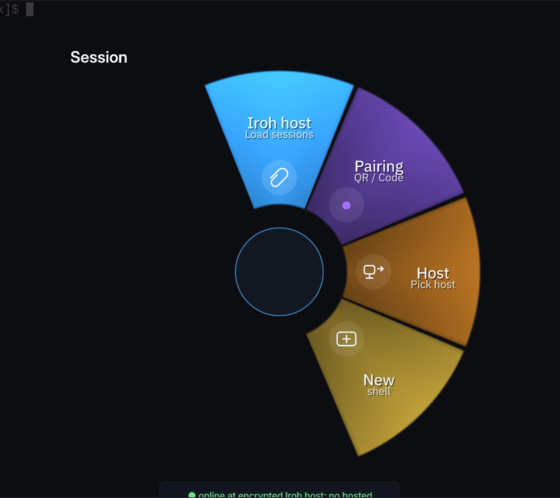
The new pane runs on the server:

The paired host stays saved. Next time, choose Session Management, then Change Host, and pick it.
3. Pair a tablet or phone#
On the server, show a QR code and scan it with the mpmux app:
mpmux-cli pair qr-code --device-label "tablet" --output pair.png
Or use a short code, which you type on the device (Accept Short Code). It is valid for five minutes:
mpmux-cli pair short-code --device-label "tablet"
Chapter 5 shows the tablet side.
4. Without a window: the CLI#
A script or a headless machine can pair and use the host with mpmux-cli
alone. Save the invite to a file, then:
mpmux-cli session --sessiond-iroh-file invite.txt pair \
  --device-label ci-runner --host-label build-server
The credentials land in ~/.config/mpmux/auth/build-server-device/
(endpoint.target, device.id, device.token). Use them for later
commands:
D=~/.config/mpmux/auth/build-server-device
mpmux-cli session --sessiond-iroh-file "$D/endpoint.target" \
  --sessiond-device-id "$(cat "$D/device.id")" \
  --sessiond-device-token-file "$D/device.token" list
create, send-text, and snapshot work the same way.
How pairing works#
Three secrets are involved; none of them is ever sent in clear text:
| Secret | Where it lives | What it allows |
|---|---|---|
| Admin token | on the server only (sessiond-admin-token) |
create invites, list and remove devices |
| Invite | one-time link, QR code, or short code | pair one device, once, within ten minutes (short code: five) |
| Device token | on the paired device | connect to this host and use its sessions |
What happens:
- On the server,
mpmux-cli pair …uses the admin token to ask the host for an invite. The invite holds the host's Iroh address (its public key and relay), the host name, an invite id, a random pairing code, and the expiry time. - The device connects to that address. Iroh checks that the other side holds the host's private key, so a copied invite cannot lead to a fake host.
- The device sends the invite id and pairing code. The host checks them, marks the invite as used, and creates a device id and a device token for this device.
- The device stores the host's address and its device token. Every later connection authenticates with that token over the encrypted connection.
The host stores only hashes of the admin token, the pairing codes, and the
device tokens (auth-store.json), so the file does not let anyone connect.
A short code works the same way, with one step in front: the code is an
encrypted handshake through a rendezvous service (pair.mightypainting.dev)
that hands the invite to the device. The service forwards only encrypted
data.
Keep invites, codes, and tokens out of chats, tickets, and screenshots. To
remove a device, open mpmux-cli tui on the server and use its pairing
screen; that device then has to pair again.
On a trusted network only: direct TCP#
For tests on a private network, the host can also listen on plain TCP. Traffic is then not encrypted. Use it only behind WireGuard or a similar tunnel. Details: remote security.
Next#
Chapter 9 shows how to change keys, themes, and behavior.